Sometimes it happens that a certain application hangs and prevents the PC to shutdown properly and it also consumes a considerable chunk of Page file memory. As a result, your system runs at a lower speed than its original potential. To disable these applications automatically after a particular time you will have to do some registry tweaking. Just follow these steps:
But before that, do not forget to backup your registry.
1.Open Notepad and paste the following text in a new file-
Windows Registry Editor Version 5.00
[HKEY_LOCAL_MACHINE\SYSTEM\CurrentControlSet\Control\Session Manager\Memory Management]
"ClearPageFileAtShutdown"=dword:00000001
[HKEY_USERS\.DEFAULT\Control Panel\Desktop]
"AutoEndTasks"="1"
[HKEY_LOCAL_MACHINE\SYSTEM\CurrentControlSet\Control]
"WaitToKillServiceTimeout"="1000"
2.Save the file as shutdown.reg
3.Double click the file thus saved to add the information to the registry.
Thats it!
Showing posts with label speed tweaks. Show all posts
Showing posts with label speed tweaks. Show all posts
May 21, 2009


May 17, 2009
How to disable programs on startup in Windows XP
A lot of programs like download managers, DVD burners, P2P clients etc associate themselves to run at startup every time Windows XP starts. Actually, this is a good feature, otherwise you would have to start the anti virus manually whenever you boot your PC which would have been a very tiring job. But this run-at-startup feature is also one of the most common reasons for a sluggish startup. When you install a program like say an on-screen image capturing utility, odds are that it will schedule itself to run at startup. Now even if you don't want to use it, the damn thing will be sitting there at the bottom right corner of your screen consuming some of the precious system memory. As the number of such programs increases more system memory gets used by them. This eventually slows down the startup process.
You can of course search for 'do not run when Windows starts' option or something like that in the program's settings, but you will have to do that for every such program. To reduce the labor, you can do some tweaking with the registry and voila!
Here is how to disable the programs you don't want to automatically start every time Windows boots using the registry editor.
1.Click Start > Run and type 'msconfig' without quotes. Hit enter to get the system configuration utility.
You can of course search for 'do not run when Windows starts' option or something like that in the program's settings, but you will have to do that for every such program. To reduce the labor, you can do some tweaking with the registry and voila!
Here is how to disable the programs you don't want to automatically start every time Windows boots using the registry editor.
1.Click Start > Run and type 'msconfig' without quotes. Hit enter to get the system configuration utility.
2.Click the 'Startup' tab to find the list of all the startup items that load automatically.
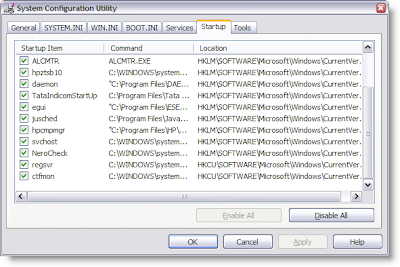 3.Uncheck the ones that you do not need.
Jan 20, 2009
Disable Scandisk when Windows starts
When Windows xp does not shut down correctly due to sudden power failure or forceful shutdown by the user, it performs a check to make sure your hard disk is alright. This can be a bit annoying at times. Fortunately, there is a way to disable this autocheck.
1.Go to start and click run. Type 'regedit' and hit enter.
2.Go to 'HKEY_LOCAL_MACHINE>SYSTEM>CurrentControlSet>Control>SessionManager'
3.Create a new DWORD value or modify the existing value, called 'AutoChkTimeOut' and set it according to the value data as follows:
Value Name : AutoChkTimeOut
Data Type : REG_DWORD(DWORD value)
Value Data : Time in seconds(put 0 to disable)
Jan 13, 2009
Audio, Video files playing improperly
If your audio or videos files are playing as though the fast forwarding is on, causing improper audio or video output, there is a very good chance that your drivers are not properly installed. Such problems usually arise when the audio or video drivers are installed before the chipset the driver. So, to fix this problem, you need to uninstall all the drivers and reinstall them in the correct order. The correct method is to install the chipset driver first and any other driver such as audio or video later on.
When you are done with all this, reboot your system and check the audio/video files. They should play properly.
Dec 25, 2008
How to close hung programs faster
In windows xp, when an application crashes, you press Ctrl+Alt+Del to bring up the Task Manager to close the non responding program manually by pressing the end task button. But the application does not end immediately but takes some time to do so. You can actually reduce this time by making a registry tweak.
To do this, click on start menu and click run to open the run dialog box.
In the run dialog box type regedit and hit enter.
To do this, click on start menu and click run to open the run dialog box.
In the run dialog box type regedit and hit enter.
In the resulting window, navigate yourself to HKEY_CURRENT_USER\ControlPanel\Desktop’

In the right pane, you will find a number of entries. Double click the one having the name ‘HungAppTimeout’. The edit string menu pops up. The default value in the value data field is 5000. this is the time in milliseconds after which the hung application ends. Reduce the value to about 500 or 600 and click ok.

Next time when any application hangs, you can end it quite faster
Dec 22, 2008
Shutdown or restart pc in one click
Sometimes clicking on start menu, then clicking on shutdown button and then clicking on shutdown or restart button seems a long method to shutdown or restart your pc. If you want to create your own shutdown or restart you can do it this way:
Right click on desktop > click on new > click on shortcut
Type shutdown > hit enter
Hit enter again.
You have your new shutdown icon on the desktop ready to be double cliked!
If you want to set the time after which your pc shuts down and display some message you can do that by typing the shortcut name as ‘shutdown -s -t xx -c “message”
Where xx represents the time in seconds after which your pc will shutdown. You can type any message such as “bye everyone” in place of “message”, but it should be enclosed in double quotes.
e.g. shutdown -s -t 05 -c "bye everyone”
Similarly if you want to restart your pc you can type the name of shortcut as shutdown -r -t xx -c "message"
Right click on desktop > click on new > click on shortcut
Type shutdown > hit enter
Hit enter again.
You have your new shutdown icon on the desktop ready to be double cliked!
If you want to set the time after which your pc shuts down and display some message you can do that by typing the shortcut name as ‘shutdown -s -t xx -c “message”
Where xx represents the time in seconds after which your pc will shutdown. You can type any message such as “bye everyone” in place of “message”, but it should be enclosed in double quotes.
e.g. shutdown -s -t 05 -c "bye everyone”
Similarly if you want to restart your pc you can type the name of shortcut as shutdown -r -t xx -c "message"
Subscribe to:
Posts (Atom)


